
Nadakacheri 5.0 Login, Status Check and Certificate Download (ನಾಡಕಚೇರಿ / ನಾಡಕಛೇರಿ)
With the new 5.0 version, you can now apply for your Caste Certificate, Income Certificate, Residence Certificate, EWS Certificate, Land Records, Senior Citizen ID, and many other services without visiting any government office. Whether you need a certificate for school admission, job application, government schemes, or personal use, Nadakacheri 5.0 helps you complete the entire process in just a few minutes. You can apply online, check your status, track updates, verify your certificate, and download it everything from your phone or computer.

What is Nadakacheri 5.0?
Nadakacheri 5.0 is an online portal launched by the Government of Karnataka. Through this portal citizens can easily apply for various government services and certificates online such as:
Nadakacheri 5.0 Login
If you are applying first time for a certificate then you might not know how to login to the official portal. Don’t worry, it’s very easy just follow the guideline step-by-step. Now follow the below easy steps to apply for your Certificate.
You’re Logged In!
Now you can easily access:
- ✓ Online services
- ✓ Certificate applications
- ✓ Document tracking
- ✓ And more
This login is your official Nadakacheri 5.0 gateway for all Karnataka e-services.
Tips for Successful Login
How to Apply for a Certificate Online Through Nadakacheri 5.0?
If you live in Karnataka, then you must need certificates like caste, income, or residence. Earlier, people had to wait in long lines at the Taluk office to get them. Now, with the introduction of Nadakacheri online portal you can easily apply for these certificates online. It’s quick and easy, no need to visit the office. The process is simple and smooth from start to finish. Here’s a simple step-by-step guide to help you apply online.
Visit Nadakacheri 5.0 Public Login Page

Citizen Dashboard
Note: You can chek the complete list of all services along with required documents and fee details on the official Services page.
Choose Certificate Type

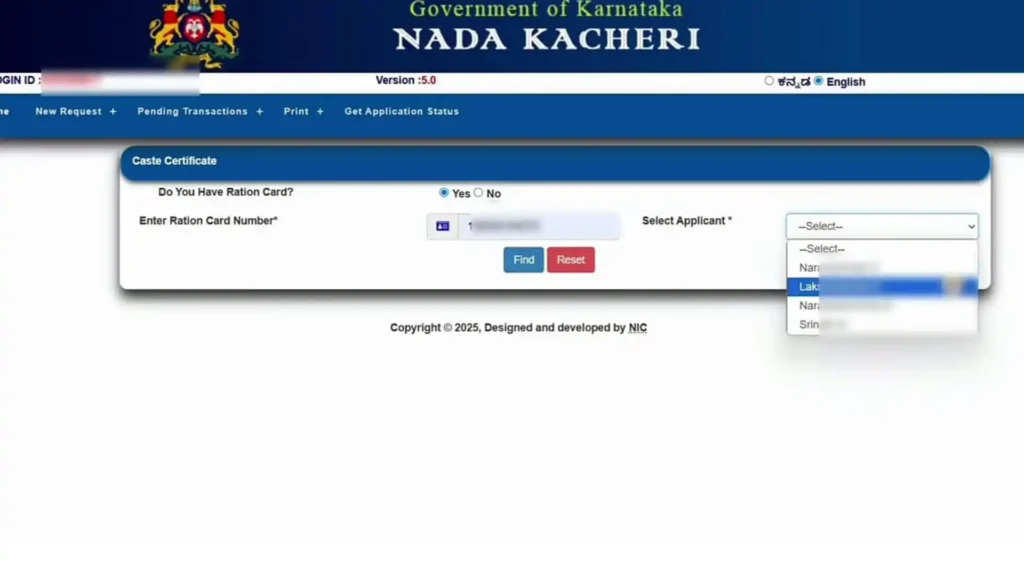
Ration Card or Aadhaar Authentication
You will be asked if you have a Ration Card:
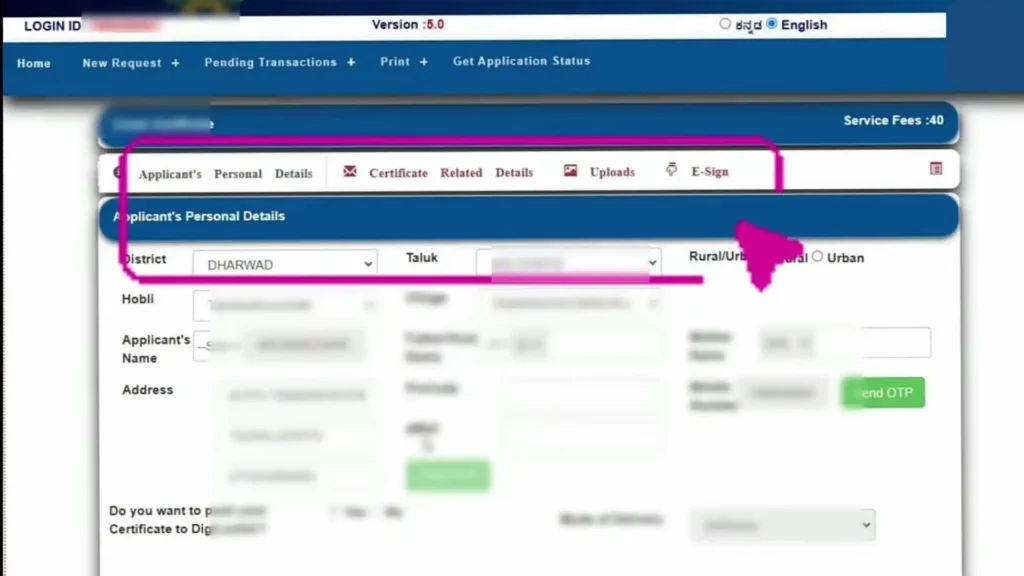
Fill in Personal Details
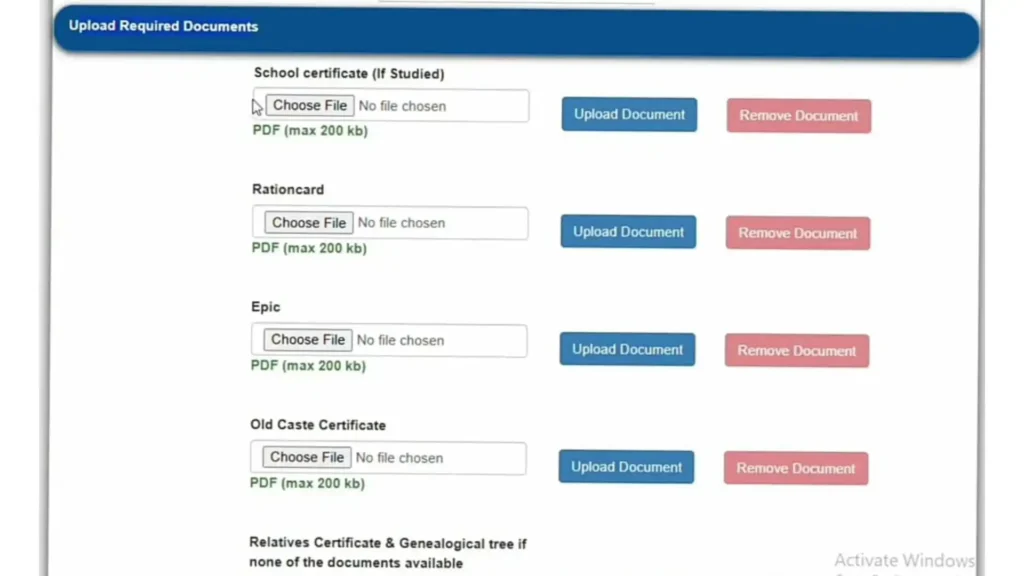
Upload Required Documents
E-Sign Using Aadhaar
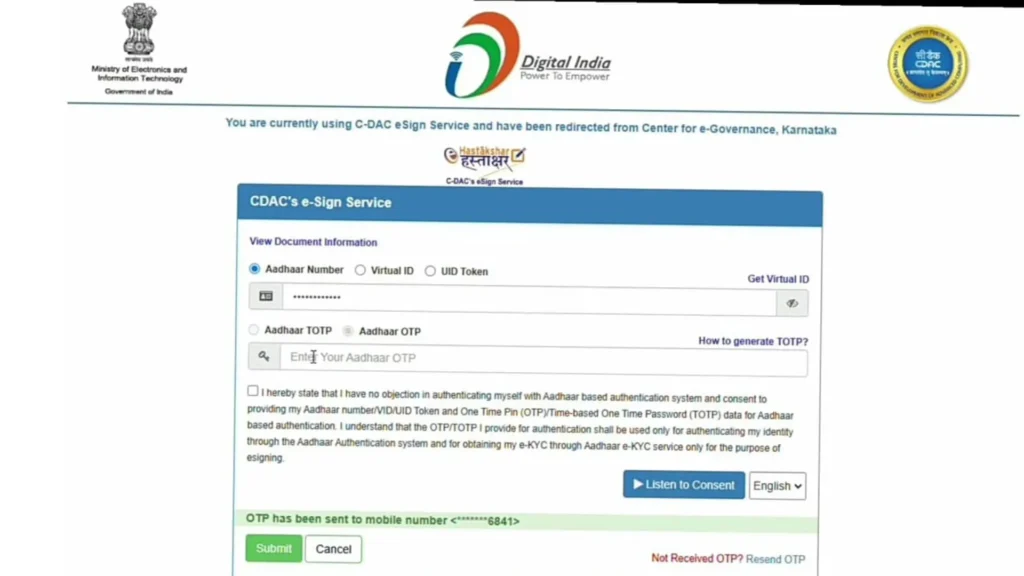
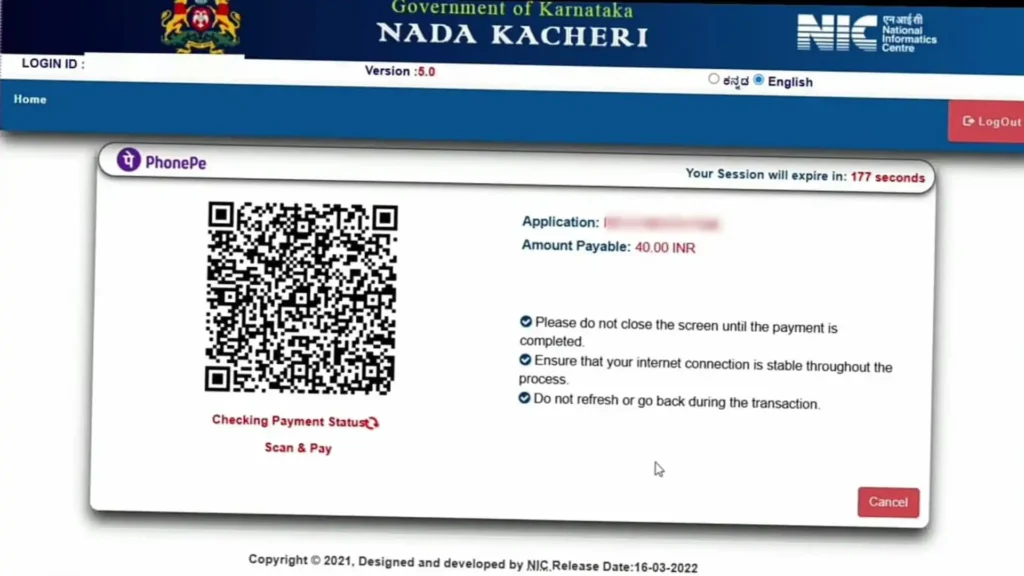
Pay the Service Fee
How to Check Nadakacheri Status Certificate (ಅರ್ಜಿ ಸ್ಥಿತಿ ಪರಿಶೀಲನೆ)
Visit the official website of nadakacheri.karnataka.gov.in
First click on top menu then click “Application Status”
Enter your RD Number e.g. (RD0038340123456)
RD Number Format
RD003 834 0123456
RD + Taluk Code + Year + Serial Number
After entering RD number click Search to know your application status details.
→ Pending at Tahsildar → still processing
→ Approved → “Download” option appears
Click Download → Take print if needed
Check How Your Status Will Look
We have created this tool to give you a clear preview of how your application status will appear on official portal.
Check Application Status
Live DemoApplicant Name
Ramesh Kumar
Service Type
Income Certificate
Application Received
01 JAN 2026, 10:30 AM
Verification (Village Accountant)
01 JAN 2026, 02:15 PM
Tahsildar Approval
Pending
Expected completion: 3 Working Days
This is a demo simulator • Real portal: nadakacheri.karnataka.gov.in
Note: Please don't enter your actual RD number here add any random number for preview.
How to read and type your RD number
On the official status page, choose the Acknowledgement No option and type the RD number from your slip. An example shape is RD0038340123456, but your own number is the one on your SMS or slip. People generally read it as RD, then a location code, then the year and a serial number. Copy it without spaces.
How To Download or Reprint Nadakacheri Certificate (ಪ್ರಮಾಣಪತ್ರ ಡೌನ್ಲೋಡ್)
First-Time Download / Print
Reprint Lost Certificate
How to Get Nadakacheri Certificate on the Same Day in 2026
Karnataka Government made everything faster and easier this year. No more waiting 15–30 days. Now you can get your certificate on the same day!
e-Kshana – Same-Day Certificate!
If your Aadhaar mobile number is updated and your village records are correct → you will get the certificate on the same day.
Right now in 2026, 7–8 out of every 10 people are getting their certificates on the same day.
Biggest tip: Update your Aadhaar mobile number today — chances of same-day approval become very high
DigiLocker – No More Paper!
Your certificate is instantly sent to your DigiLocker by Nadakacheri if you choose to sent it to your Digilocker at the time of application.
If you misplace the physical copy, you can access it anytime through the app. Fully accepted by colleges, banks, and job offices.
Required Documents List (2026) (ಅಗತ್ಯ ದಾಖಲೆಗಳು)
Before you apply for any certificate makes sure to have these documents ready:
⚠️ Always check official Nadakacheri portal for latest requirements
Key Features
Easy Application
You can apply for many government services on one portal. There’s no need to create a separate account just login in your existing account and start your application.
Track Application
You can check the status of your application anytime, whether you applied online or at the Taluk office.
SMS Updates
You’ll get SMS alerts at every stage when your application is received, approved, or moved to the next step.
Download Certificate
Once your certificate is ready , you will get a message with a link to download your certificate.
RD Number
Every application gets a unique RD Number. This helps you track your application easily.
Print Your Certificate
Once your application is approved and your certificate is ready you can print your certificate directly from the Nadakacheri portal. If you lose your certificate, you can reprint it anytime by paying ₹40 certificate fee
Why Use Nadakacheri Portal?
Services Available On Nadakacheri (AJSK) Portal (ನಾಡಕಚೇರಿ ಸೇವೆಗಳು)
Citizens can access these Nadakacheri services either online via the Nadakacheri portal or in person at their nearest Taluk office.
Agri Services
General Certificate Services
Social Security Services
Caste Certificate Services
Income Certificate Services
Residence Certificate Services
Nadakacheri Fee (ಶುಲ್ಕ)
The fee depends on the service. Pay only the amount shown on the official payment screen. Do not pay any fee on a third-party website.
| Item | Amount stated on this page | Note |
|---|---|---|
| Certificate application | ₹25 to ₹50 | Pay by UPI QR or the method shown on the screen |
| Reprint of a lost certificate | ₹40 | Pay only on the official portal |
| Social security pension applications | No application charge | Per the official procedure page. Pay the amount on the screen if it differs |
| Rejected application | Fee is not returned | You pay again when you apply again |
Nadakacheri Login Problems and Fixes (ಲಾಗಿನ್ ಸಮಸ್ಯೆ)
Login uses only your Aadhaar-linked mobile number and an OTP. Most login problems come from the wrong number, a slow network or an old session.
Tips Before You Submit Your Nadakacheri Application (ಅರ್ಜಿ ಸಲ್ಲಿಸುವ ಮೊದಲು)
Common Mistakes to Avoid in Nadakacheri 5.0 (2026)
Fix these simple errors and get your certificate approved in 7–15 days instead of getting rejected!
From 2026, only PDF documents are accepted on the official portal. Any other format results in instant rejection.
Use your phone camera → “Scan to PDF” option or any PDF converter app
Even 201 KB will be rejected automatically. This is the most common reason for application failure.
Reduce file size using any free PDF compressor tool or app before uploading
OTP is sent only to the mobile number registered with Aadhaar. If it’s old/wrong, you’ll never receive the OTP.
Update your mobile number in Aadhaar first at any Aadhaar centre before applying
Server slows down between 11 AM – 5 PM → session expires → all entered data is lost.
Best time to apply: 7 AM – 11 AM or after 9 PM
Previous user’s session may still be active → you get “Already logged in” error.
Always use your own mobile phone or personal laptop
Application remains in draft if e-Sign is not completed fully.
Keep the pop-up open → enter OTP → wait for “Signed Successfully” message
Adding extra ₹1–2 or paying less → payment fails → application not submitted.
Pay the exact amount shown on the official QR code
Without the RD number you cannot track status or download certificate later.
Take screenshot + Save the acknowledgement PDF immediately after payment
Slow network causes timeout during document upload or payment → data lost.
Use strong Wi-Fi or good mobile data → avoid public/hotspot networks
Avoid these = 99% approval chance!
Many Karnataka citizens received their certificate in just 7–15 days by avoiding these mistakes.
Go to Official PortalNadakacheri Due Date Passed? Use Sakala (ಸಕಾಲ)
Sakala is the Karnataka Guarantee of Services to Citizens Act, 2011. Your acknowledgement slip shows the date by which the service is due. Use that date, not a number of days from a blog.
Step by step instructions are in our Sakala appeal guide.
What Does CV Mean on Nadakacheri? (ಪ್ರಮಾಣಪತ್ರ ಪರಿಶೀಲನೆ)
On Nadakacheri, CV means Certificate Verification. It does not mean a resume. A college or employer uses the official CV page to confirm that a certificate is real, using the RD number or certificate number. To learn the steps, read our guide to verify your Nadakacheri certificate online. This website cannot verify a certificate.
Nadakacheri in Your District: Where to Apply in Karnataka (ನಿಮ್ಮ ಜಿಲ್ಲೆಯಲ್ಲಿ ನಾಡಕಚೇರಿ)
The online portal is the same for every district in Karnataka. Your file is handled by the Nadakacheri and revenue officers of the taluk and village in your address, so enter your address exactly as it is on your documents.
| Division | Districts |
|---|---|
| Bengaluru | Bengaluru Urban, Bengaluru North, Bengaluru South (Ramanagara), Chikkaballapura, Chitradurga, Davanagere, Kolar, Shivamogga, Tumakuru |
| Mysuru | Mysuru, Chamarajanagara, Chikkamagaluru, Dakshina Kannada, Hassan, Kodagu, Mandya, Udupi |
| Belagavi | Belagavi, Bagalkote, Dharwad, Gadag, Haveri, Uttara Kannada, Vijayapura |
| Kalaburagi | Kalaburagi, Ballari, Bidar, Koppal, Raichur, Vijayanagara, Yadgir |
Need a centre address or timing? Open our Nadakacheri office timing and locations guide.
Using Your Nadakacheri RD Number for KCET and College Admission
Many students apply for a caste or income certificate only because an admission form asks for it. The form usually asks for the RD number printed on the certificate, so the officer can verify it online.
Keep a PDF copy of each certificate and the acknowledgement slip. You can also see how to print it again in our download and reprint guide.
Nadakacheri vs Seva Sindhu: Which Portal Should You Use?
Karnataka has more than one online route for citizen services, and people often mix them up. Nadakacheri is the Revenue Department route for certificates and pensions. Seva Sindhu is a separate state services portal.
Nadakacheri Terms in Kannada and English (ನಾಡಕಚೇರಿ ಪದಗಳು)
The official portal works in Kannada and English. You can pick the language at the top of the page. These are the words you will see most often.
| English | Kannada | Where you see it |
|---|---|---|
| Nadakacheri | ನಾಡಕಚೇರಿ / ನಾಡಕಛೇರಿ | Portal name. Both spellings are used in searches |
| Nada Kacheri (two words) | ನಾಡ ಕಚೇರಿ | Portal name |
| Nadakacheri status | ನಾಡಕಚೇರಿ ಸ್ಟೇಟಸ್ | Status page |
| Nadakacheri website | ನಾಡಕಚೇರಿ ವೆಬ್ಸೈಟ್ | Official portal |
| Family tree certificate (Vamsha Vruksha) | ವಂಶವೃಕ್ಷ ಪ್ರಮಾಣ ಪತ್ರ | New Request menu |
| Certificate | ಪ್ರಮಾಣಪತ್ರ | All services |
| Caste certificate | ಜಾತಿ ಪ್ರಮಾಣಪತ್ರ | New Request menu |
| Income certificate | ಆದಾಯ ಪ್ರಮಾಣಪತ್ರ | New Request menu |
| Residence certificate | ನಿವಾಸ ಪ್ರಮಾಣಪತ್ರ | New Request menu |
| Application status | ಅರ್ಜಿ ಸ್ಥಿತಿ ಪರಿಶೀಲನೆ | Status page |
| Application number (RD number) | ಅರ್ಜಿ ಸಂಖ್ಯೆ | Acknowledgement slip |
| Required documents | ಅಗತ್ಯ ದಾಖಲೆಗಳು | Application form |
| Fee | ಶುಲ್ಕ | Payment page |
| Login | ಲಾಗಿನ್ | Home page |
| Download certificate | ಪ್ರಮಾಣಪತ್ರ ಡೌನ್ಲೋಡ್ | My Applications |
| Reprint | ಮರುಮುದ್ರಣ | Print Again |
| Pending | ಬಾಕಿ | Status history |
| Rejected | ತಿರಸ್ಕೃತ | Status history |
| Sakala | ಸಕಾಲ | Appeal after the due date |
Nadakacheri Contact and Helpline Details (ಸಂಪರ್ಕ ಮತ್ತು ಸಹಾಯವಾಣಿ)
Use these official contact points when your application is stuck, or you cannot log in.
| Contact point | Details | Use it for |
|---|---|---|
| Official portal | nadakacheri.karnataka.gov.in/AJSK | Apply, check status, download certificate |
| Helpdesk email | [email protected] | Payment problems, status not updating, download errors |
| Technical team email (listed on the official contact page) | [email protected] | Portal errors and technical faults |
| Directorate office | Atalji Janasnehi Directorate, SSLR Building, K R Circle, Bengaluru 560001 | Written complaints and escalations |
| Your Nadakacheri centre or taluk office | Visit the hobli Nadakacheri centre or the Tahsildar office of your taluk | Field verification, rejected files, closing a duplicate request |
| District office | Deputy Commissioner (DC) office of your district | If the taluk office does not respond |
| Sakala | Use the Sakala service request or appeal option with your RD number | Delay beyond the due date on your slip |
What to include when you write to the helpdesk
Tips for faster help
Conclusion
The Nadakacheri 5.0 portal is a useful online service by the Government of Karnataka. It helps you get certificates like income, caste, residence, and pension without visiting the offices online.
However, if you are applying for the first time then you need to register on the Bhoomi i-Wallet portal first. Then you can log in to Nadakacheri, complete the form for your certificate, pay the fee online, and download your certificate. The portal uses Aadhaar verification and digital signatures to make the process simple and secure. This system saves time and makes it easy for everyone in Karnataka to get government certificates quickly and safely.