Nadakacheri Login Guide: Complete Guide to Portal Access, OTP Login & Common Issues
Looking for Nadakacheri Login or unable to access the portal, receive OTP, or understand which login option to choose? The Karnataka Nadakacheri portal allows citizens to access various Revenue Department services online, including income, caste, residence, domicile, agriculture, and OBC certificates.
Nadakacheri Login uses a mobile number and OTP-based authentication system, so users can access services without creating a separate username or password. Whether you want to apply for a new certificate, track an existing application, or download an approved document, this guide explains the complete login process, different login types, and solutions for common portal issues.
What is Nadakacheri Login?
Nadakacheri Login gives citizens access to Karnataka’s official e-governance portal. Through a single account, users can apply for certificates such as income, caste, residence, domicile, agriculture, and OBC certificates. The portal is operated by the Revenue Department under the Atalji Janasnehi Kendra (AJSK) project. The login process is the same for all services, so separate logins are not required.

You do not need to create a username or password. The portal uses your mobile number and a one-time password (OTP) instead, which makes it faster for first-time users also. Once logged in, the same dashboard lets you submit new applications, track existing ones, and download certificates that have already been approved.
What is the Nadakacheri Official Login Link?
The official Nadakacheri portal is nadakacheri.karnataka.gov.in. This is the only website you should use to apply for certificates, check status, or login, since several unofficial sites copy the name and design to attract traffic. Bookmark this link directly rather than searching for it every time, since search results sometimes show outdated or third-party pages first.
If the main link does not load, try refreshing after a few minutes or switching to a different browser, since the portal can be slow during peak hours, especially in the morning. Avoid entering personal details like Aadhaar or mobile number on any site other than the official government site.
What You Need Before You Login
Registered Mobile Number:
You need a mobile number that you can access right away, since the OTP is sent directly to this number during every login attempt. This does not have to be the same number linked to your Aadhaar card, but using your Aadhaar-linked number reduces verification issues later in the application process.
Aadhaar Linking Requirement:
While login itself only needs a mobile number, most certificate applications ask for your Aadhaar number for identity verification and e-signing. Keep your Aadhaar card ready before you start, since you may need to enter the number and complete a separate Aadhaar OTP step during the application.
Nadakacheri Public Login — Step-by-Step Process
Step 1: Visit the Official Nadakacheri Portal
Open nadakacheri.karnataka.gov.in in your browser. On the homepage, click “Online Application” and then select “Apply Online” to begin.
Step 2: Enter Registered Mobile Number
Type your mobile number in the field provided and click “Get OTP.” Double-check the number before submitting, since one wrong digit means you will not receive the OTP.
Step 3: Generate and Enter OTP
Within a few seconds, you will get a six-digit OTP by SMS. Enter this code on the screen and click “Login” to reach your dashboard.
Step 4: Select Language and Service
After login, choose your preferred language, Kannada or English, and select “New Request” to see the full list of certificates and services you can apply for.
Nadakacheri Public Login vs Operator Login: Key Differences
Many users confuse these two login types, but they serve completely different people. Public Login is for citizens applying for their own certificates from home using their personal mobile number. Operator Login is for staff working at AJSK centres, taluk offices, or service kendras, who file applications on behalf of citizens who visit in person, often in rural areas with limited internet access.
| Feature | Public Login | Operator Login |
|---|---|---|
| Who uses it | Citizens applying for themselves | AJSK centre staff |
| Login method | Mobile number + OTP | Registered operator credentials |
| Where used | Any personal device | Government service centres |
| Purpose | Apply, track, download own certificates | File applications for visiting citizens |
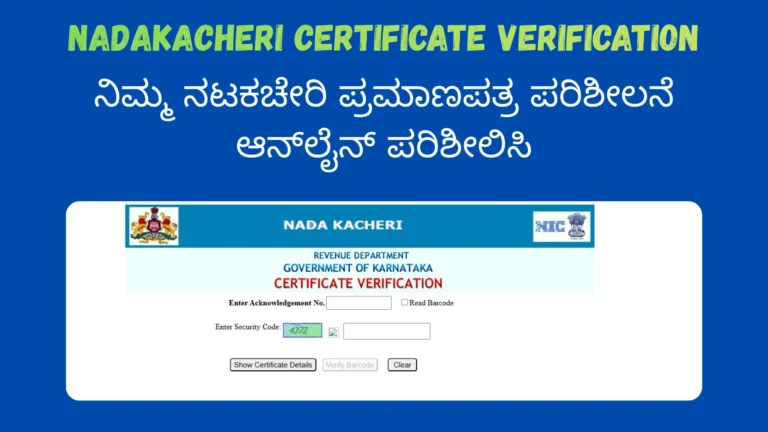
What Is Nadakacheri CV Login (Certificate Verification)?
CV stands for Certificate Verification and it works separately from the regular login. This tool lets anyone, including employers, banks, or colleges, confirm whether a Nadakacheri certificate is genuine by entering the barcode or QR code printed on it.
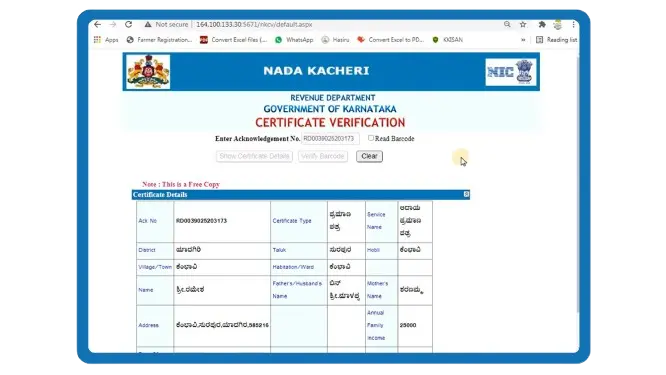
To use CV login, go to the Nadakacheri portal and select the Certificate Verification option. Enter the RD number from the certificate, and the portal displays the original certificate details if it is authentic. This step does not need an OTP, since it is built for quick public verification rather than personal account access.
Nadakacheri 5.0 Login: What’s New in the Latest Version
Nadakacheri 5.0 is the current version of the portal, built to be faster and more mobile-friendly than earlier versions. It uses Aadhaar-based e-signing, so applicants can complete identity verification online instead of submitting physical signatures at an office.
The updated system also provides digitally signed certificates, which are accepted by government offices, educational institutions, banks, and other organizations without requiring a physical stamp or signature. With these changes, Nadakacheri aims to make online certificate services faster, simpler, and more convenient for citizens.
Nadakacheri Login Not Working? Common Errors & Fixes
OTP Not Received:
Wait at least 30 seconds before requesting a new OTP, since resending too quickly can cause delays. If it still does not arrive, check that your mobile number is active and not blocking SMS from short codes.
Invalid OTP Error:
This usually happens when the OTP has expired or was entered incorrectly. Request a fresh OTP rather than reusing an old one, and enter it within the time limit shown on screen.
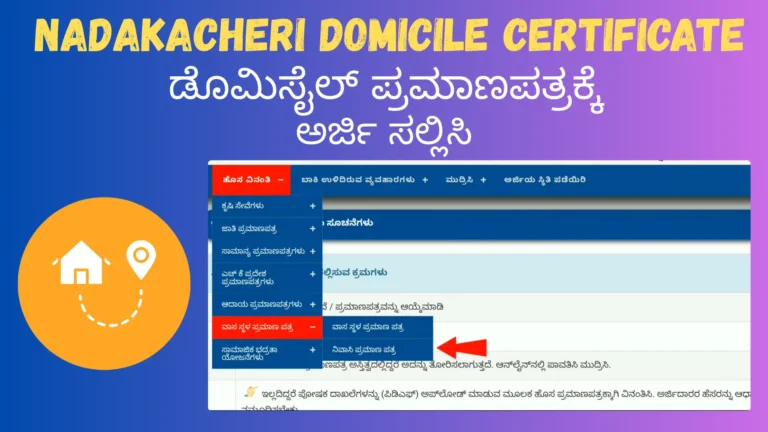
Mobile Number Not Registered or Aadhaar-Linked
If the portal rejects your number, it may not be linked to your Aadhaar card. Visit your nearest Aadhaar centre to update your mobile number, or try logging in with a different registered number.
Session Expired or Page Not Loading:
This is often caused by a slow internet connection or high traffic on the portal. Refresh the page, clear your browser cache, or try again during non-peak hours, such as early morning or late evening.
Website Down or Slow to Respond:
Government portals occasionally go down for maintenance. If the site stays inaccessible for more than a day, check official updates or visit your nearest AJSK centre to apply offline instead.
Forgot Registered Mobile Number? What to Do
If you do not have access to the mobile number used for a past application, you cannot recover the old login directly online. Your safest option is to visit your nearest Nadakacheri or AJSK centre with your ID proof and explain the situation to the operator there.
The centre staff can look up your application using your name or RD number and guide you on updating your contact details. For any new application going forward, use a mobile number you are likely to keep for several years, since certificates may need future verification.
How to Check Application Status After Login?
After logging in, click “Application Status” on your dashboard and enter your RD Number, which was sent to you by SMS after you first submitted your application. The portal then shows whether your application is submitted, pending with the Tahsildar, approved, or rejected.
You do not always need to login just to check status, since the portal also offers a direct status-check option using only the RD number. For a complete walkthrough of every status stage, see our dedicated guide on checking Nadakacheri application status.
How to Download or Print Your Certificate After Login
Once your application status shows “Approved,” login to your dashboard and select “Print Certificate” from the menu. Enter your RD number again if asked, and the portal generates a PDF version of your certificate.
This downloaded certificate is digitally signed and accepted by schools, banks, and government offices without needing a physical stamp. The portal also allows users to reprint certificates later for a small fee. For step-by-step instructions, read our guide to print and reprint certificate.
Offline Login Alternative: Visiting Your Nearest AJSK Centre
If you are not comfortable applying online, or your area has poor internet access, you can visit your nearest Atalji Janasnehi Kendra or taluk office instead. The centre operator will log in on your behalf using the Operator Login and complete the application using the documents you bring.
This offline route costs the same application fee and it takes the same processing time as an online application, since both paths go through the same approval system at the Tahsildar’s office.
Nadakacheri Helpline & Support Contact
If none of the troubleshooting steps above resolve your issue, you can contact the Nadakacheri helpdesk for assistance:
Always use the contact details provided on the official government portal rather than those found on unofficial websites, as official sources have the most accurate and up-to-date information. Before reaching out, keep your RD number and registered mobile number ready, since support staff may need these details to quickly locate your application.
Conclusion
Nadakacheri Login provides a simple way for Karnataka citizens to access certificate services online using a mobile number and OTP. Whether you want to apply for a certificate, track an application, download approved documents, or verify a certificate, understanding the correct login process can help you use the portal without unnecessary delays.
If you face OTP errors or login issues, the troubleshooting steps mentioned above can help you resolve common problems and access Nadakacheri services smoothly.